

Most apps eventually need to store and manipulate data. And if you're building with Firebase, that data lives in Firestore, Google's flexible, scalable NoSQL document database.
But before you can confidently create, read, update, or delete data, you need to understand how Firestore actually organizes information. It doesn't look like a SQL database, and treating it like one is the fastest way to end up with a messy, hard-to-query data structure.
In this tutorial, you'll learn how Firestore's NoSQL data model works, then build a small task management app to practice every CRUD operation with the Firebase Web SDK (v9+, modular). By the end, you'll be able to add tasks, query them, update nested fields and arrays, and delete data safely without leaving orphaned subcollections behind.
Table of Contents
Prerequisites
Before you start, make sure you have the following:
Node.js v18 or later (
node --version)A Google account to create a Firebase project (the free Spark plan is enough for this tutorial)
Basic familiarity with JavaScript, including
async/awaitand ES modulesA code editor and a terminal
You don't need prior experience with Firebase or NoSQL databases, as this guide builds that understanding from the ground up.
How Firestore Structures Data
If you're coming from a relational (SQL) background, the first thing to unlearn is the idea of tables with a fixed schema and foreign key joins. Firestore is a document-oriented NoSQL database, and it organizes data around two core concepts: collections and documents.
A collection is a named bucket that holds documents. Think
tasks,users, ororders.A document is a single record inside a collection, identified by a unique ID. It stores data as key-value pairs, similar to a JSON object.
Here's the catch that trips up a lot of newcomers: documents don't need to share the same fields. One task document can have a dueDate field while another doesn't. Firestore doesn't enforce a schema at the database level, that responsibility shifts to your application code.
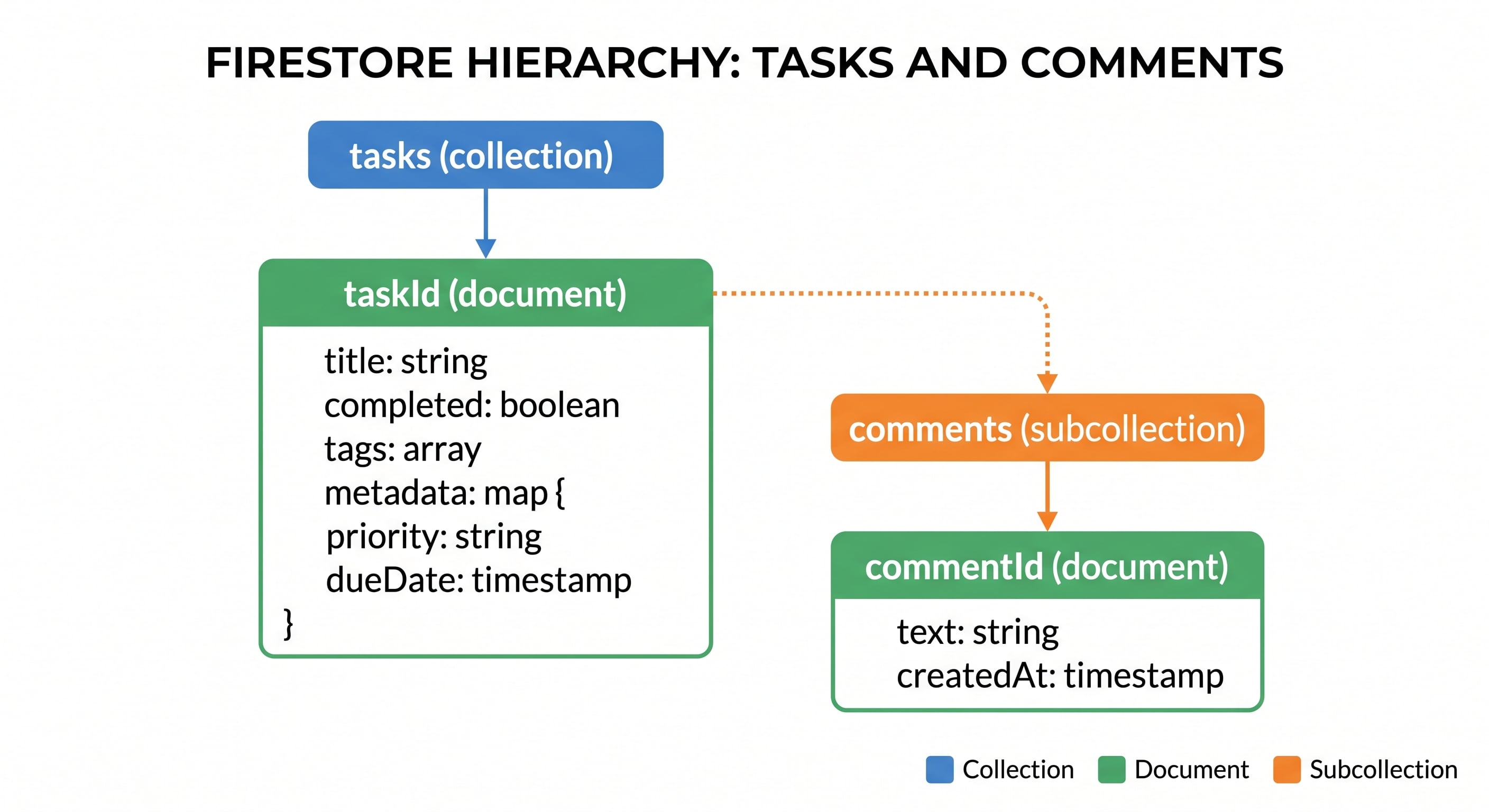
Nesting and subcollections
Documents can hold two kinds of nested data:
Maps, which are objects nested directly inside a document (for example, a
metadatafield containing{ priority, dueDate })Subcollections, which are entire collections nested under a specific document (for example, every task can have its own
commentssubcollection)
This gives you a structure that looks like a tree:
tasks (collection)
 └── taskId (document)
      ├── title: "Article title"
      ├── completed: false
      ├── tags: ["writing", "firebase"]
      ├── metadata: { priority: "high", dueDate: <timestamp> }
      └── comments (subcollection)
           └── commentId (document)
                ├── text: "CRUD Article"
                └── createdAt: <timestamp>
Supported data types
Firestore documents can store several native types. The ones you'll use most often are:
| Type | Example |
|---|---|
string |
"Write CRUD article" |
number |
42 |
boolean |
true |
array |
["writing", "firebase"] |
map |
{ priority: "high" } |
timestamp |
Timestamp.now() |
reference |
a pointer to another document |
geopoint |
a latitude/longitude pair |
Why this matters before writing CRUD code
Every CRUD operation you'll write later depends on this structure:
Create means adding a document to a collection, with an auto-generated or custom ID.
Read means fetching either a single document by ID or a set of documents matching a query.
Update means modifying fields on an existing document, including nested maps and arrays.
Delete means removing a document, and Firestore will not automatically clean up its subcollections (a common gotcha you'll see in Step 6).
With the mental model in place, let's set up a project and start writing code.
Step 1 – Set Up Your Firebase Project
Head to the Firebase console and create a new project.
Click Add project, give it a name (for example:
crud-tasks-demo), and follow the setup wizard (Google Analytics is optional for this tutorial).Once the project is created, open the left sidebar and click Databases and Storage and then Firestore.
Click Create database. Choose a location close to you, and for this tutorial, start in test mode so you can read and write without configuring security rules yet.
Note: Test mode leaves your database open to anyone for 30 days. Never ship an app to production without proper Firestore security rules, we'll touch on this in the Debugging section.
You should now see an empty Firestore database, ready to receive your first collection.
Step 2 – Initialize the SDK
Create a new project folder and install the Firebase Web SDK:
mkdir firestore-crud-demo && cd firestore-crud-demo
npm init -y
npm install firebase
Grab your project's config object from Project settings - General - Your apps - Web app in the Firebase console (register a new web app if you haven't yet).
Create a firebase-config.js file:
// firebase-config.js
import { initializeApp } from "firebase/app";
import { getFirestore } from "firebase/firestore";

const firebaseConfig = {
  apiKey: "YOUR_API_KEY",
  authDomain: "YOUR_PROJECT_ID.firebaseapp.com",
  projectId: "YOUR_PROJECT_ID",
  storageBucket: "YOUR_PROJECT_ID.appspot.com",
  messagingSenderId: "YOUR_SENDER_ID",
  appId: "YOUR_APP_ID",
};

const app = initializeApp(firebaseConfig);
export const db = getFirestore(app);
Every CRUD example from here on imports db from this file. Keep your actual config values out of version control (use environment variables in a real project).
Step 3 – Create: Adding Tasks
Firestore gives you two ways to create a document: let Firestore generate the ID, or set your own.
Auto-generated ID with addDoc()
// create-task.js
import { collection, addDoc, Timestamp } from "firebase/firestore";
import { db } from "./firebase-config.js";

async function createTask() {
  try {
    const docRef = await addDoc(collection(db, "tasks"), {
      title: "Write CRUD article",
      completed: false,
      tags: ["writing", "firebase"],
      metadata: {
        priority: "high",
        dueDate: Timestamp.fromDate(new Date("2026-09-15")),
      },
      createdAt: Timestamp.now(),
    });
    console.log("Task created with ID:", docRef.id);
  } catch (error) {
    console.error("Error creating task:", error);
  }
}

createTask();
Custom ID with setDoc()
Use this when you want to control the document ID yourself, for example, matching it to an ID from another system.
import { doc, setDoc } from "firebase/firestore";
import { db } from "./firebase-config.js";

async function createTaskWithId(taskId) {
  await setDoc(doc(db, "tasks", taskId), {
    title: "Review pull request",
    completed: false,
    tags: ["code-review"],
  });
}

createTaskWithId("task-001");
Adding a document to a subcollection
To add a comment under a specific task, you reference the parent document first:
import { collection, addDoc, Timestamp } from "firebase/firestore";
import { db } from "./firebase-config.js";

async function addComment(taskId, text) {
  await addDoc(collection(db, "tasks", taskId, "comments"), {
    text,
    createdAt: Timestamp.now(),
  });
}

addComment("task-001", "First draft done");
Step 4 – Read: Querying Tasks
Fetching a single document
import { doc, getDoc } from "firebase/firestore";
import { db } from "./firebase-config.js";

async function getTask(taskId) {
  const snapshot = await getDoc(doc(db, "tasks", taskId));
  if (snapshot.exists()) {
    console.log(snapshot.id, snapshot.data());
  } else {
    console.log("No such task.");
  }
}

getTask("task-001");
Fetching an entire collection
import { collection, getDocs } from "firebase/firestore";
import { db } from "./firebase-config.js";

async function getAllTasks() {
  const snapshot = await getDocs(collection(db, "tasks"));
  snapshot.forEach((doc) => {
    console.log(doc.id, doc.data());
  });
}

getAllTasks();
Filtering with queries
import { collection, query, where, orderBy, limit, getDocs } from "firebase/firestore";
import { db } from "./firebase-config.js";

async function getUrgentPendingTasks() {
  const q = query(
    collection(db, "tasks"),
    where("completed", "==", false),
    orderBy("metadata.priority"),
    limit(10)
  );

  const snapshot = await getDocs(q);
  snapshot.forEach((doc) => console.log(doc.id, doc.data()));
}

getUrgentPendingTasks();
Heads up: combining where() on one field with orderBy() on another often requires a composite index. Firestore will throw an error in your console with a direct link to create it. More on this in Debugging.
Real-time updates with onSnapshot()
Instead of fetching once, you can subscribe to live changes. This is useful for a task list that updates instantly across devices:
import { collection, onSnapshot } from "firebase/firestore";
import { db } from "./firebase-config.js";

const unsubscribe = onSnapshot(collection(db, "tasks"), (snapshot) => {
  snapshot.docChanges().forEach((change) => {
    console.log(change.type, change.doc.id, change.doc.data());
  });
});

// Call unsubscribe() when you no longer need updates (e.g., component unmount)
Step 5 – Update: Modifying Tasks
Partial update with updateDoc()
Unlike setDoc(), updateDoc() only touches the fields you specify. Everything else on the document stays untouched.
import { doc, updateDoc } from "firebase/firestore";
import { db } from "./firebase-config.js";

async function completeTask(taskId) {
  await updateDoc(doc(db, "tasks", taskId), {
    completed: true,
  });
}

completeTask("task-001");
Updating a nested field with dot notation
You don't need to rewrite the whole metadata map to change one property inside it:
await updateDoc(doc(db, "tasks", "task-001"), {
  "metadata.priority": "low",
});
Updating arrays safely
Directly overwriting an array field is risky in concurrent scenarios. Use arrayUnion() and arrayRemove() instead:
import { doc, updateDoc, arrayUnion, arrayRemove } from "firebase/firestore";
import { db } from "./firebase-config.js";

async function addTag(taskId, tag) {
  await updateDoc(doc(db, "tasks", taskId), {
    tags: arrayUnion(tag),
  });
}

async function removeTag(taskId, tag) {
  await updateDoc(doc(db, "tasks", taskId), {
    tags: arrayRemove(tag),
  });
}
arrayUnion() won't add a duplicate value, and arrayRemove() removes every matching instance. Both operate atomically on the server.
Step 6 – Delete: Removing Tasks
Deleting a document
import { doc, deleteDoc } from "firebase/firestore";
import { db } from "./firebase-config.js";

async function deleteTask(taskId) {
  await deleteDoc(doc(db, "tasks", taskId));
}

deleteTask("task-001");
The subcollection trap
Here's the gotcha mentioned earlier: deleting tasks/task-001 does not delete its comments subcollection. Those comment documents become orphaned, they still exist in your database. They're just unreachable through the UI unless you know the path.
To clean up properly, delete the subcollection's documents first, then the parent:
import { collection, getDocs, doc, deleteDoc, writeBatch } from "firebase/firestore";
import { db } from "./firebase-config.js";

async function deleteTaskWithComments(taskId) {
  const commentsRef = collection(db, "tasks", taskId, "comments");
  const commentsSnapshot = await getDocs(commentsRef);

  const batch = writeBatch(db);
  commentsSnapshot.forEach((commentDoc) => {
    batch.delete(commentDoc.ref);
  });
  batch.delete(doc(db, "tasks", taskId));

  await batch.commit();
}

deleteTaskWithComments("task-001");
writeBatch() groups multiple deletes into one atomic operation. Either all of them succeed, or none do.
Deleting a single field
If you only want to remove one field without deleting the whole document, use deleteField():
import { doc, updateDoc, deleteField } from "firebase/firestore";
import { db } from "./firebase-config.js";

await updateDoc(doc(db, "tasks", "task-001"), {
  metadata: deleteField(),
});
Debugging Common Issues
FirebaseError: Missing or insufficient permissions
Your security rules are blocking the request. If you're still in test mode, check whether your 30-day window expired (rules revert to deny-all after that). For a real app, review your rules in Firestore and then Rules and make sure they match the paths you're reading/writing, including subcollections, which need their own rule blocks.
Function addDoc() called with invalid data. Unsupported field value: undefined
Firestore rejects undefined values outright, unlike null, which is allowed. This usually happens when a form field is empty and you pass it straight into your write call. Filter out undefined fields before writing, or default them to null.
The query requires an index
This shows up when you combine where() and orderBy() on different fields, as in the Step 4 example. Firestore can't serve that query with automatic indexes. The error message includes a direct link that pre-fills the composite index for you in the console, click it, wait a minute or two for the index to build, and rerun your query.
Reads adding up fast / quota warnings
Every document returned by getDocs() counts as a read, even inside a loop calling getDoc() repeatedly. Avoid fetching a whole collection just to filter it client-side, push filtering into your query with where() instead, and use limit() on anything that could grow unbounded.
Orphaned subcollections after delete
If you notice documents you thought you deleted still consuming storage or showing up in exports, check for subcollections under the deleted document's path. As shown in Step 6, deleteDoc() never cascades, cleanup is always your responsibility.
Conclusion
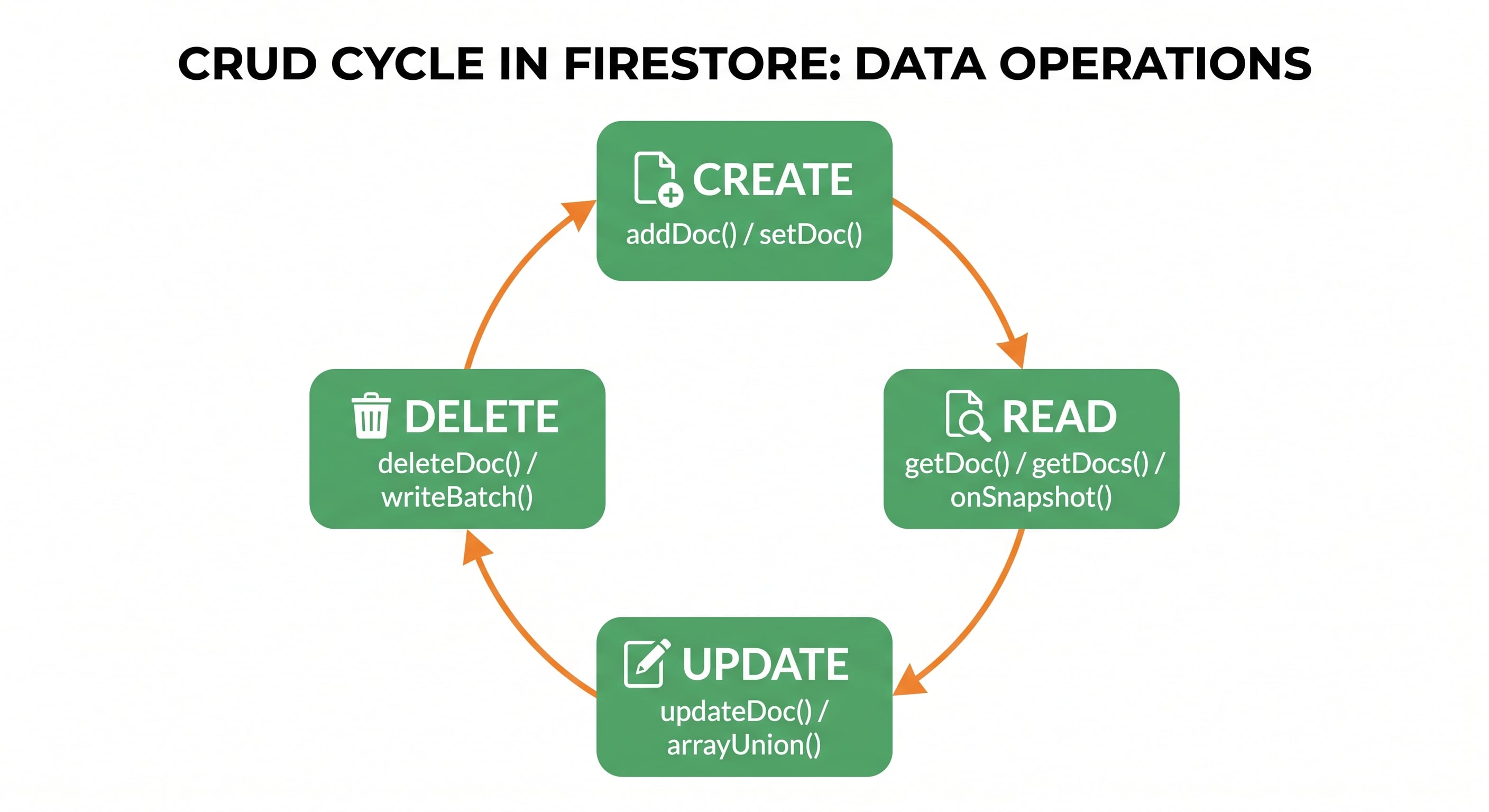
You now have a working mental model of Firestore's structure and hands-on experience with every CRUD operation using the Web SDK v9+. Here's a quick recap:
| Operation | Key functions |
|---|---|
| Create | addDoc(), setDoc() |
| Read | getDoc(), getDocs(), query(), onSnapshot() |
| Update | updateDoc(), arrayUnion(), arrayRemove() |
| Delete | deleteDoc(), deleteField(), writeBatch() |
From here, there are a few natural next steps once you're comfortable with the basics:
Transactions, for reads and writes that must succeed or fail together (for example, transferring a task between two users)
Batch writes, which you already saw in Step 6. They're useful anytime you need to touch multiple documents atomically
Composite indexes, for more advanced filtering and sorting combinations
Pagination with
startAfter(), for loading large collections in chunks instead of all at once
If you haven't already, it's worth revisiting how to model your data before you write queries against it. Decisions made at the modeling stage (like whether to nest data or use a subcollection) directly shape which of these CRUD patterns will feel natural versus awkward later on.